
Site checks
Some settings affect your full site. SEO Sentry checks them at each check. To see the results, go to SEO Sentry > Site Checks.
robots.txt
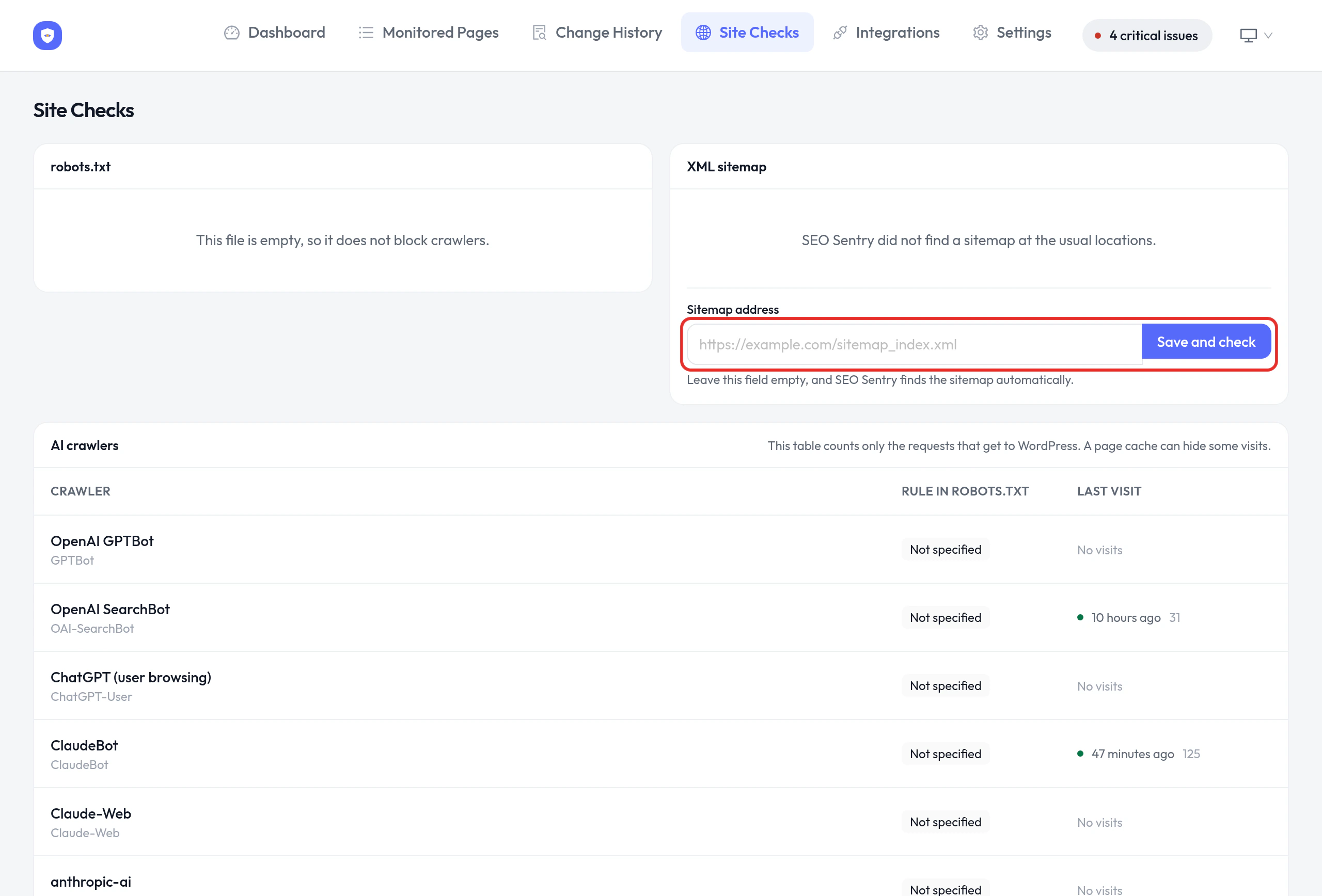
Section titled “robots.txt”The robots.txt card shows the content of your robots.txt file.
| Change | Severity |
|---|---|
| robots.txt blocks all crawlers | Critical |
| AI crawler rules changed | Warning |
| robots.txt changed | Warning |
If the file is empty, the card shows This file is empty, so it does not block crawlers. An empty file is correct.
XML sitemap
Section titled “XML sitemap”The XML sitemap card shows the number of URLs in your sitemap.
| Change | Severity |
|---|---|
| Sitemap not available | Critical |
| Sitemap not valid | Critical |
| Fewer URLs in sitemap (more than 20% fewer URLs) | Warning |
SEO Sentry looks for the sitemap in this sequence:
- The
Sitemap:line inrobots.txt /wp-sitemap.xml/sitemap_index.xml/sitemap.xml
Enter the sitemap address
Section titled “Enter the sitemap address”If SEO Sentry does not find your sitemap, enter its address:
- On the XML sitemap card, find the Sitemap address field. If the field does not show, click Use a different address.
- Type the full address of your sitemap. For example:
https://example.com/sitemap_index.xml. - Click Save and check.
You can also set this address in Settings > Checks > Sitemap address. To go back to the automatic search, make the field empty.
WordPress search visibility
Section titled “WordPress search visibility”WordPress has the setting Discourage search engines from indexing this site. When this setting is on, search engines do not show your site.
When the setting changes to on, SEO Sentry records the change Site hidden from search engines. The severity is Critical. Site Checks also shows a red message.
To correct it:
- Go to Settings > Reading.
- Clear the Discourage search engines from indexing this site check box.
- Click Save Changes.
AI crawlers
Section titled “AI crawlers”The AI crawlers table shows what your robots.txt file tells each AI crawler, and when each crawler visited last. Refer to AI crawlers.