
Page history
PRO
SEO Sentry Pro keeps the history of each monitored page. It saves a new version only when the page changes. You can compare any 2 versions field by field.
Open the history of a page
Section titled “Open the history of a page”- Go to SEO Sentry > Monitored Pages.
- In the History column, click the clock icon of the page.
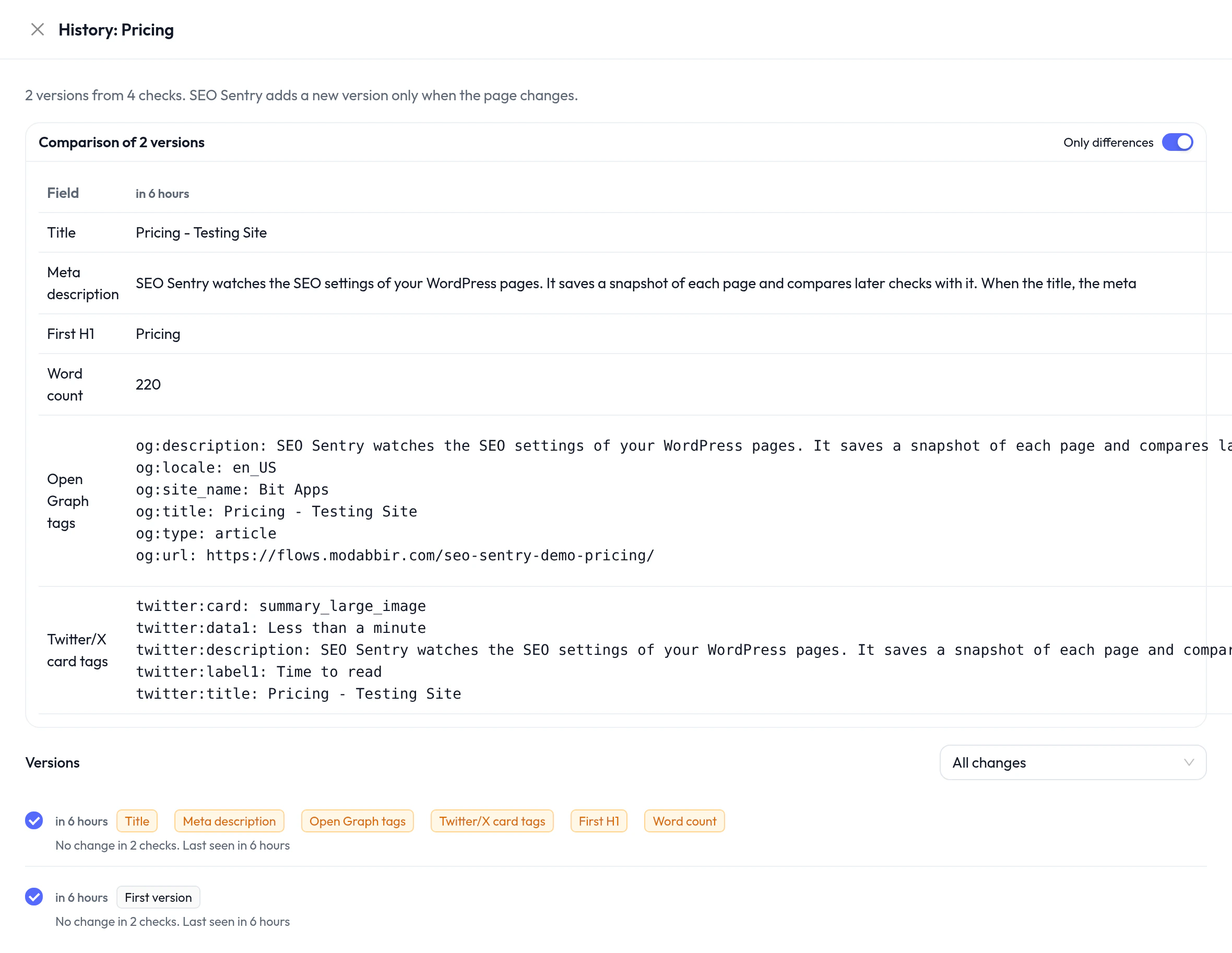
Compare 2 versions
Section titled “Compare 2 versions”The Comparison of 2 versions card compares the 2 newest versions by default.
- In the Versions list, select the check box of 2 versions.
- Read the comparison table. The older version is on the left.
The switch Only differences is on by default. Turn it off to see all fields.
Fields in the history
Section titled “Fields in the history”The history keeps these fields:
| Group | Fields |
|---|---|
| Indexing | Title, Meta description, Robots meta tag, X-Robots-Tag header, Canonical URL |
| Response | HTTP status, Redirects to, Redirect ends at, Number of redirects, Final HTTP status, Redirect loop |
| Content | Schema types, First H1, Number of H1s, Word count |
| Sharing and links | Open Graph tags, Twitter/X card tags, Hreflang links, Link follow status |
Find the changes of 1 field
Section titled “Find the changes of 1 field”In the Versions list, use the filter All changes. Select a field, for example Only Title changes. The list then shows only the versions where that field changed.