
Check schedule
Set how often to check
Section titled “Set how often to check”- Go to SEO Sentry > Settings.
- On the Checks tab, find How often to check for changes.
- Select an option.
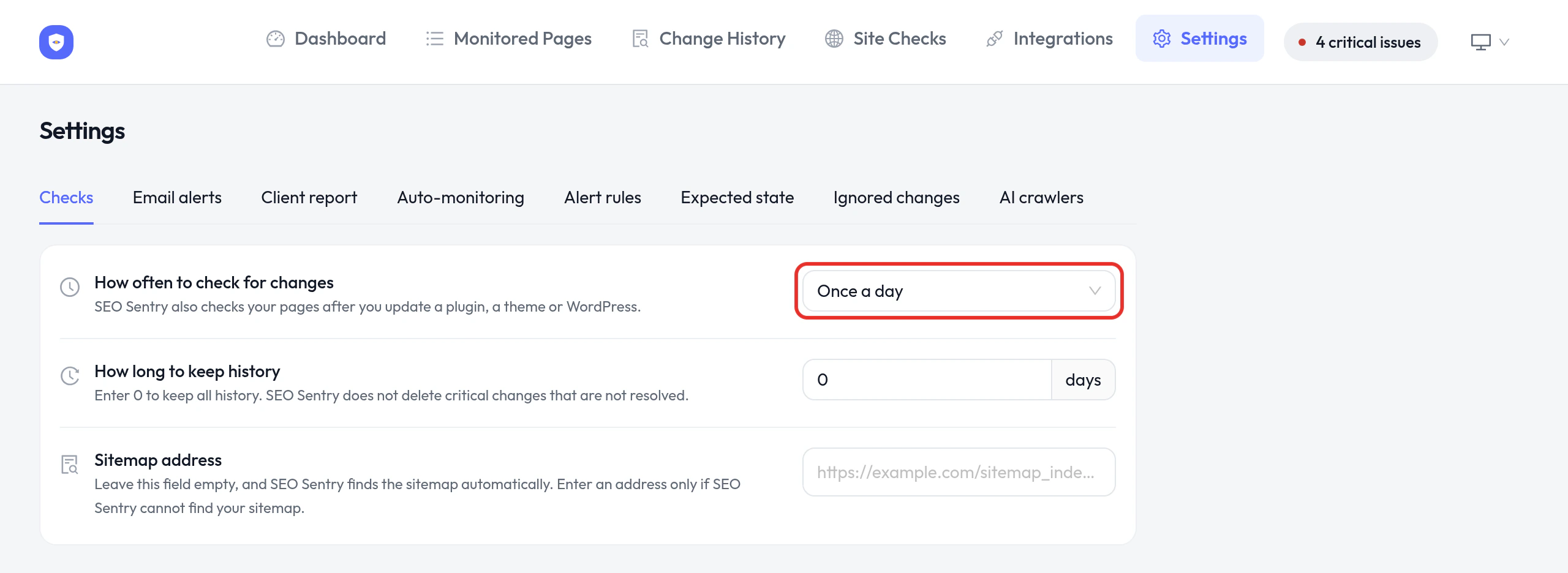
| Option | Meaning |
|---|---|
| Every hour | SEO Sentry checks all pages each hour. |
| Twice a day | SEO Sentry checks all pages 2 times each day. |
| Once a day | SEO Sentry checks all pages 1 time each day. This is the default. |
| Off (only when you click Check now) | SEO Sentry checks only when you click Check now on the Dashboard. |
With SEO Sentry Pro, you can set a different schedule for each page group, also Once a week. Refer to Alert rules and page groups.
Extra check after updates
Section titled “Extra check after updates”SEO Sentry also checks all pages about 90 seconds after one of these events:
- You update a plugin, a theme or WordPress.
- You activate or deactivate a plugin.
- You change the theme.
- You change an important WordPress setting. For example: the search visibility setting or the permalink structure.
- You change a setting of your SEO plugin (Yoast SEO, Rank Math, All in One SEO or SEOPress).
If you update 10 plugins, SEO Sentry waits for the last update. Then it does 1 check.
How checks run
Section titled “How checks run”SEO Sentry uses WP-Cron for scheduled checks. WP-Cron runs only when someone visits your site. On a site with few visitors, checks can start late.
Checks run in the background. They do not make your pages slower for visitors.
If monitoring stops working
Section titled “If monitoring stops working”If SEO Sentry cannot load your pages, the Dashboard shows Monitoring impaired with the error. The most frequent cause is a host or a security plugin that blocks the site from loading its own pages. These requests are called “loopback requests”. Refer to Troubleshooting.