
Client reports
PRO
SEO Sentry Pro can email a weekly or monthly SEO report to your clients. The report shows your brand, not SEO Sentry.
Set up the client report
Section titled “Set up the client report”- Go to SEO Sentry > Settings > Client report.
- Turn on Email a client report.
- Set the fields in this table.
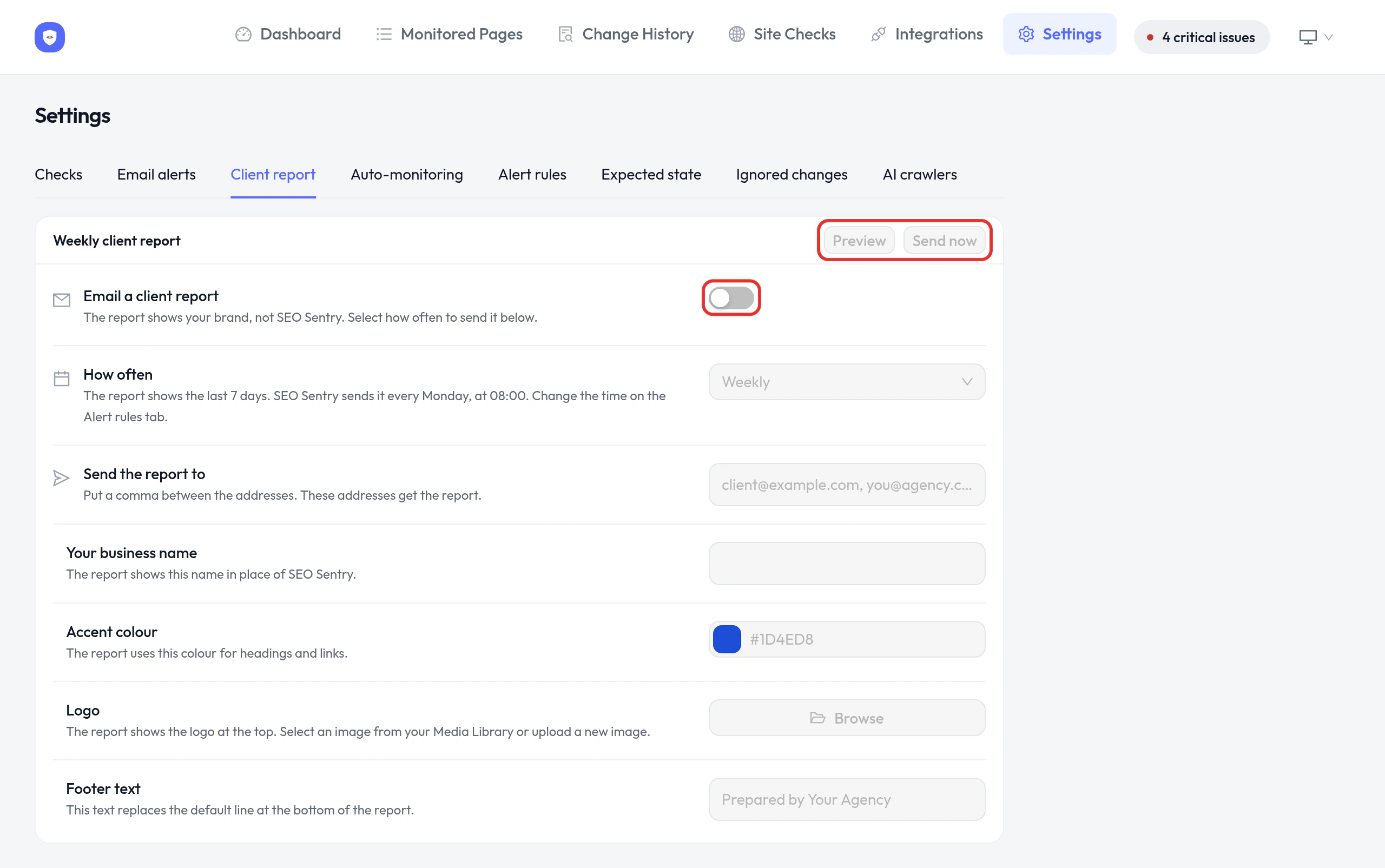
| Field | What it does |
|---|---|
| How often | Weekly: the report shows the last 7 days and goes out each Monday. Monthly: the report shows the previous month and goes out on the first Monday of the month. |
| Send the report to | The email addresses. Put a comma between the addresses. |
| Your business name | The report shows this name in place of SEO Sentry. |
| Accent colour | The colour for headings and links. |
| Logo | The logo at the top of the report. Click Browse to select an image from your Media Library. |
| Footer text | The text at the bottom of the report. For example: “Prepared by Your Agency”. |
To change the send time, go to the Alert rules tab and set Send time for scheduled emails.
Preview and send the report
Section titled “Preview and send the report”- Click Preview to see the report in a new browser tab. If nothing opens, allow pop-ups for your site.
- Click Send now to send the report immediately.
What the report contains
Section titled “What the report contains”- Your logo or business name.
- The number of monitored pages, completed checks, critical changes and warnings.
- What changed and the changes that you resolved in the period.
- The critical changes that are still open.
- The AI crawler visits in the period.
- A warning if monitoring had problems in the period.