
Email alerts
SEO Sentry sends 1 email after each check that finds changes. The email contains all the changes from that check.
Set your email alerts
Section titled “Set your email alerts”- Go to SEO Sentry > Settings.
- Click the Email alerts tab.
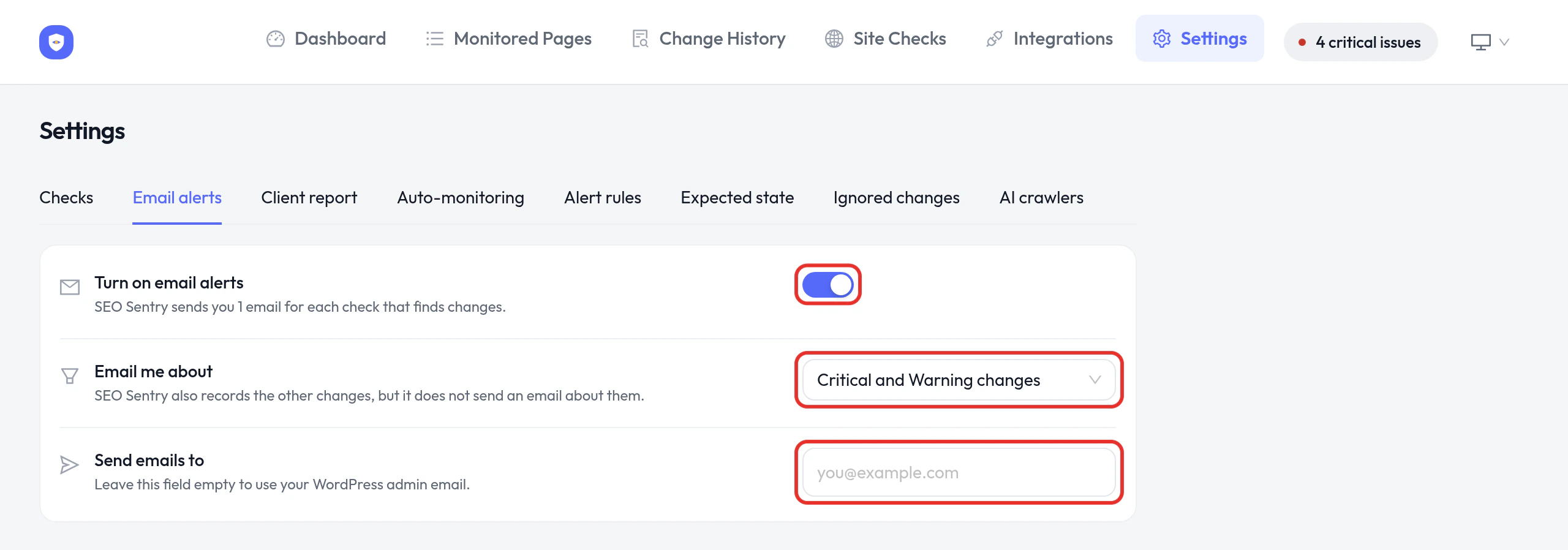
- Set the fields in this table.
| Field | What it does |
|---|---|
| Turn on email alerts | Turns the emails on or off. It is on by default. |
| Email me about | Critical changes only, Critical and Warning changes (default), or All changes, including Info. SEO Sentry records all changes, but it sends an email only for the changes that you select. |
| Send emails to | 1 email address. If you leave this field empty, SEO Sentry uses the WordPress admin email. |
Settings save automatically.
When SEO Sentry sends an email
Section titled “When SEO Sentry sends an email”SEO Sentry sends an email after a check when:
- The check found changes at or above your level in Email me about.
- A critical problem from an earlier check is gone. The subject then is all clear.
- SEO Sentry could not load your pages. The subject then is monitoring impaired.
Each change in the email shows the page, the explanation, the values before and after, and the site events before the change.
If you do not get emails
Section titled “If you do not get emails”SEO Sentry uses the WordPress email function. Many hosts do not send WordPress emails correctly. Do these steps:
- Look in your spam folder.
- Install an SMTP plugin and connect it to an email service.
- Send a test email from the SMTP plugin.